What a “remote driver” setup really means
When developers say they want a “remote driver” setup, they usually mean something specific: one person (the driver) can control the other person’s machine with their own keyboard and mouse, without the session constantly breaking due to macOS privacy prompts, Windows UAC popups, focus problems, or missing permissions.
The goal isn’t just “remote desktop works.” It’s bulletproof input: predictable keyboard shortcuts, consistent mouse behavior, and a workflow that survives app switching, elevation prompts, and multi-monitor environments—across both macOS and Windows.
Pick the right remote control approach for pair programming
There are three common ways teams attempt remote driving:
- Full remote desktop tools (general IT-oriented). These can be solid, but often feel heavy for day-to-day pairing, and may be tuned for administration rather than rapid role swaps.
- Built-in OS sharing (macOS Screen Sharing, Windows Remote Desktop). Useful in a pinch, but permission and network constraints can make collaboration uneven, especially cross-platform.
- Purpose-built pair programming tools. These prioritize low-latency screen sharing and “hands on keyboard” collaboration. For many engineering teams, this is the most reliable path to a true driver/navigator workflow.
If your main goal is consistent keyboard/mouse control while pairing, a tool designed around that interaction tends to remove a lot of the friction. Tuple is a strong reference point here because it’s built specifically for remote pairing with crisp audio, sharp video, and responsive remote control, while staying lightweight and privacy-minded. You can see the product at tuple.app.
Step 1: Pre-flight your expectations for “who owns the OS”
Before you touch permissions, align on two rules that prevent 80% of remote driving frustration:
- One active driver at a time. Even if multiple people can control, decide who’s driving right now. This reduces “focus fights” and accidental keystrokes.
- The host machine’s OS rules win. macOS privacy prompts and Windows elevation rules aren’t bugs in your tool; they’re platform security boundaries. The setup is about making those boundaries predictable.
Step 2: Make macOS remote control actually stick
macOS is strict about input control. If remote driving keeps failing, it’s usually because the host hasn’t granted the right permissions—or they were granted to the wrong app instance.
Enable the correct macOS privacy permissions
On the host Mac, confirm these in System Settings (wording varies slightly by macOS version):
- Accessibility: allows simulated keyboard/mouse input.
- Screen Recording: enables high-quality sharing of the display.
- Input Monitoring (if shown): may be required for certain input capture behaviors.
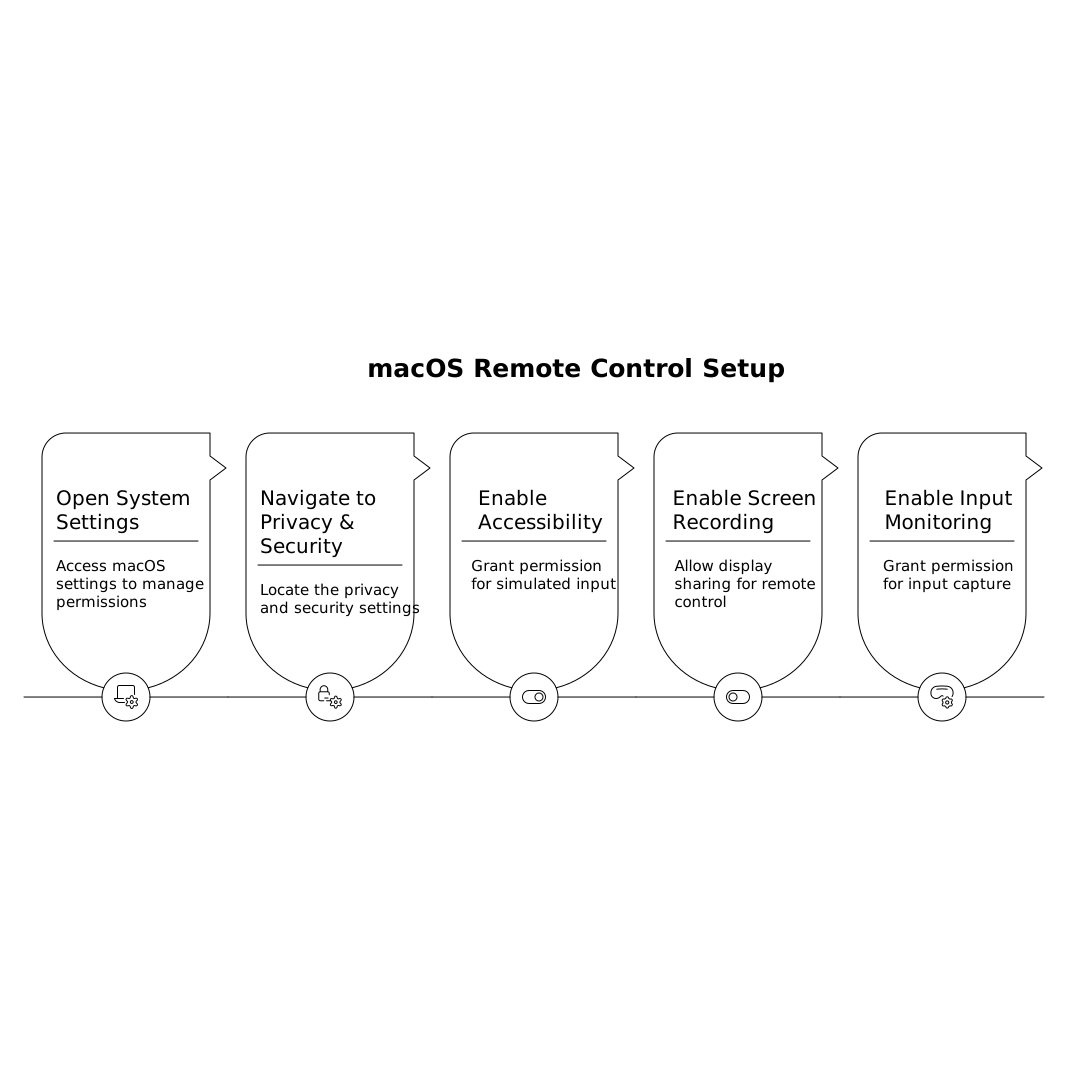
After toggling these, it’s common to need to quit and relaunch the app (or sometimes log out/in) so the permissions take effect consistently.
Reduce “focus drift” on macOS
macOS focus can jump when:
- the host receives notifications,
- Mission Control/Spaces changes occur,
- multiple monitors are rearranged mid-call.
Practical fixes that improve driving reliability:
- Hide sensitive apps instead of fighting them. If the host is worried about private windows, hide them before sharing rather than rapidly app-switching during the session. Tuple’s App Veil is built for this “prep once, then share confidently” approach.
- Standardize on one Space during pairing. Frequent Space switching increases the chance the driver’s clicks land on the wrong monitor or desktop.
- Use annotations for guidance instead of grabbing focus. When the navigator wants to point, drawing is often better than taking control for a second and causing context loss.
Step 3: Handle Windows UAC and elevated apps without breaking the flow
On Windows, the big “remote driver” killer is User Account Control (UAC). When an action requires elevation, Windows may show a secure desktop prompt that many remote control tools can’t interact with unless they’re running with the right privileges.
Run the host app with appropriate permissions
For consistent control, the host should ensure the remote collaboration app is allowed to interact with elevated dialogs when possible. In practical terms, that often means:
- installing the app normally (not running a one-off portable copy with reduced privileges),
- keeping Windows updated,
- using a standard setup where the app can be granted the permissions it requests.
Even with good setup, some secure prompts may still require the host to confirm locally. The “bulletproof” part is not eliminating security—it’s making it predictable: the driver keeps typing in the editor, and the host handles the one unavoidable local confirmation quickly.
Step 4: Make keyboard behavior predictable across macOS and Windows
Cross-platform remote driving gets weird when shortcuts don’t map cleanly. The biggest culprits are:
- Command vs Control differences (macOS vs Windows).
- Alt/Option behavior in terminals and editors.
- OS-reserved shortcuts (e.g., system-level window management).
To avoid “why didn’t that shortcut work?” moments:
- Agree on editor keymaps. If the host uses a Mac keymap in the editor, the Windows driver may be constantly translating. Standardize per team or per project.
- Use customizable shortcuts in your pairing tool. Tools like Tuple let you tailor key combos so the collaboration controls don’t collide with your IDE.
- Prefer in-app commands over OS-wide hotkeys during the session. For example, use IDE “Find in Files” rather than invoking an OS-level search overlay.
Step 5: Build a clean role-swap routine
A reliable remote driver setup is as much process as it is permissions. The fastest teams use a consistent swap routine:
- Say it out loud: “You drive” / “I drive.”
- Swap in one click rather than renegotiating who shares each time.
- Keep the same audio channel so the swap doesn’t cause rejoin friction.
Tuple is designed around this style of role swapping for pair programming, which is why it tends to feel more like sitting together than like “remote support.”
Step 6: Harden the session against distractions and accidental exposure
“Bulletproof” also means not derailing the session with privacy surprises or notification chaos:
- Turn on Do Not Disturb / Focus on the host machine before sharing.
- Hide notifications and sensitive apps proactively (again, App Veil-style preparation is faster than reacting mid-call).
- Use end-to-end encrypted collaboration when possible, especially for proprietary code or customer data. Tuple emphasizes privacy by not routing your audio/video/screen content through company servers.
Step 7: Troubleshoot the three classic failure modes
1) “I can see the screen but can’t control anything”
- On macOS: re-check Accessibility permissions and relaunch the app.
- On Windows: confirm elevation/UAC behavior; try running the host session with the expected privileges.
2) “My clicks go to the wrong place”
- Stabilize display scaling and monitor arrangement.
- Avoid switching Spaces/desktops mid-task on macOS.
3) “Typing lags or feels delayed”
- Prefer a tool optimized for low-latency interaction.
- Close high-bandwidth background apps on the host (sync clients, heavy downloads).
Where this setup fits in a modern engineering workflow
A remote driver setup becomes truly valuable when it’s routine: pairing on tough bugs, onboarding, interviews, and quick “can you take the wheel?” moments during reviews. If you already think in systems, you’ll recognize the same theme as in operational planning: remove the recurring friction so the important work can happen.
For teams that struggle with reactive interruptions, it can help to pair this with a simple capacity practice like a schedule budget for reactive work so pairing time doesn’t get swallowed by urgent pings. Schedule Budget Method for Reactive Work Without Overcommitting Your Calendar is a good companion read.
And if you’re building a culture where collaboration is the default, avoid letting urgent requests silently dominate the queue. Avoid the Priority Inversion Backlog Trap With a Simple System for Urgent Requests pairs well with the idea of fast, reliable role swapping.